As ever, you use these free programs
and modifications at your own risk. Abbydale Systems LLC. do
not accept any responsibility for any failure or outage caused by
this software or these modification.
When you open a new tab in the latest version of the Microsoft Edge Browser it will open a page that is full of, what Microsoft determine to be interesting content and plenty of adverts. This is both time consuming, as the content gets loaded, and intrusive because of the commercials.
So, what can you do about it?
Well, you could always tweak the settings and turn off quick links and stuff but if you want to always land on (say for example google.com) when you open a new Edge tab then you can achieve this by installing a browser add-in.
The first thing to do is locate a reputable add-in.
Custom New Tab - Microsoft Edge Addons ( available here at https://microsoftedge.microsoft.com/addons/detail/custom-new-tab/onagfgjlokaciajhjmajljcfanonbmia) is a good, solid choice and it is free.
When you follow the above URL you should see a tab with the following on it (click the image for the full image):
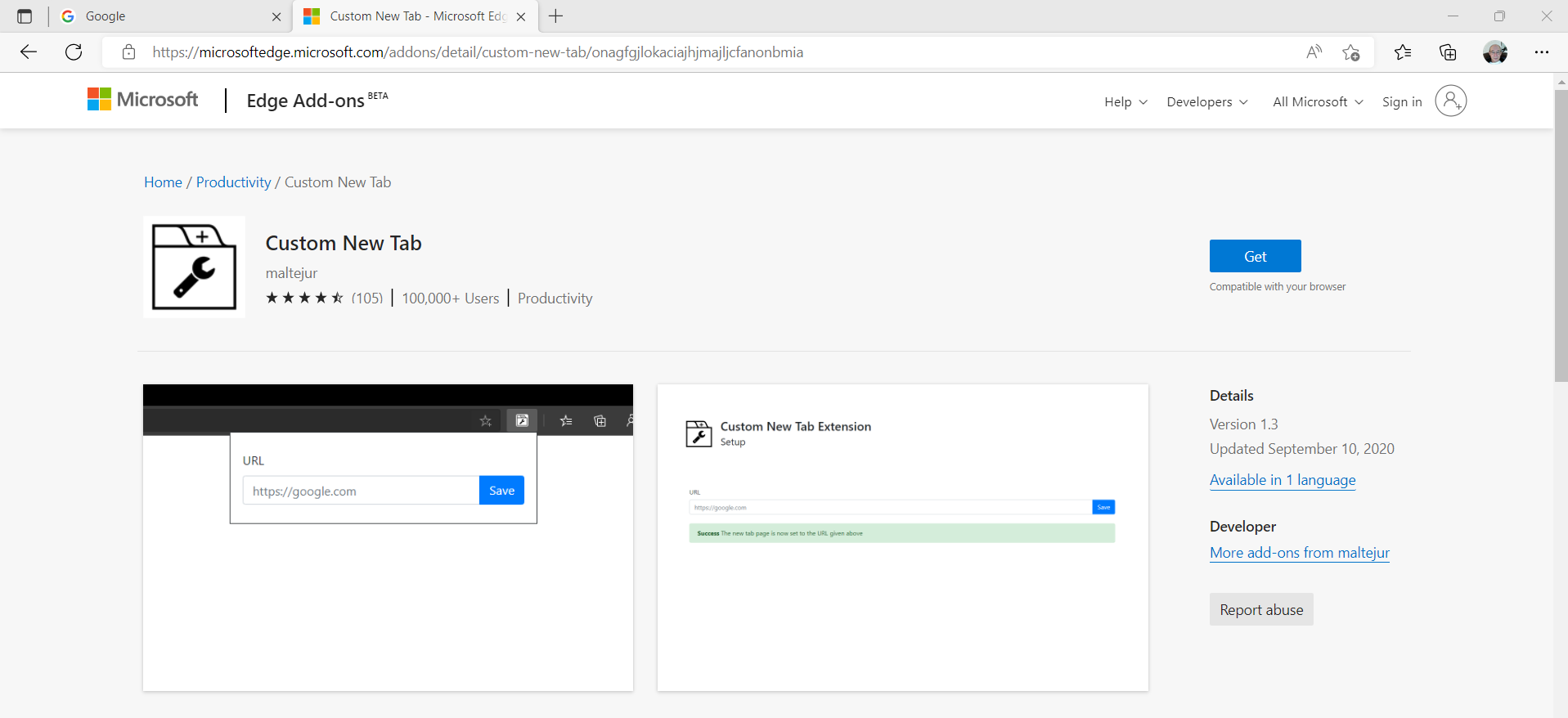
Click on the "Get" button and you should see a pop-up box that looks like this:
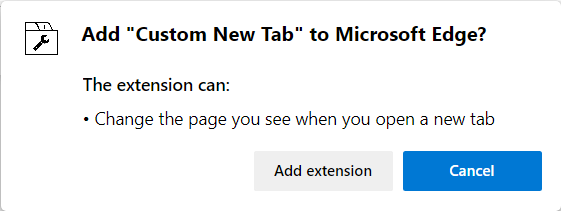
Click on the "Add extension" button. You will see another pop-up screen that is basically a warning screen, but you can just go ahead and close it. The pop-up looks like:
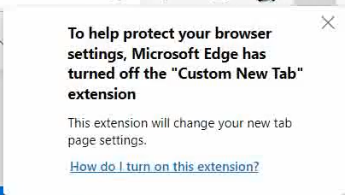
This is a default action to prevent potentially dangerous add-ins from being sneakily added to Edge and providing a potential security loophole in the browser.
Click on the three little dots on the top right of the browser screen to open up the settings menu:
.png)
In the drop down that is displayed, click on "Extensions". You should get another pop-up screen for managing extensions. It will look like this:
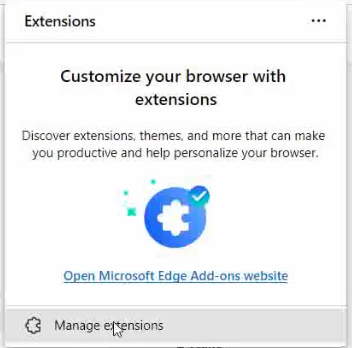
Click on the "Manage extensions" text and you will see a tab open which looks like:
.png)
Click on the slide "switch" (as indicated by the arrow above). Slide should change to blue. You can now close this tab.
Now click in the browser to open a new tab. You will see the following screen:
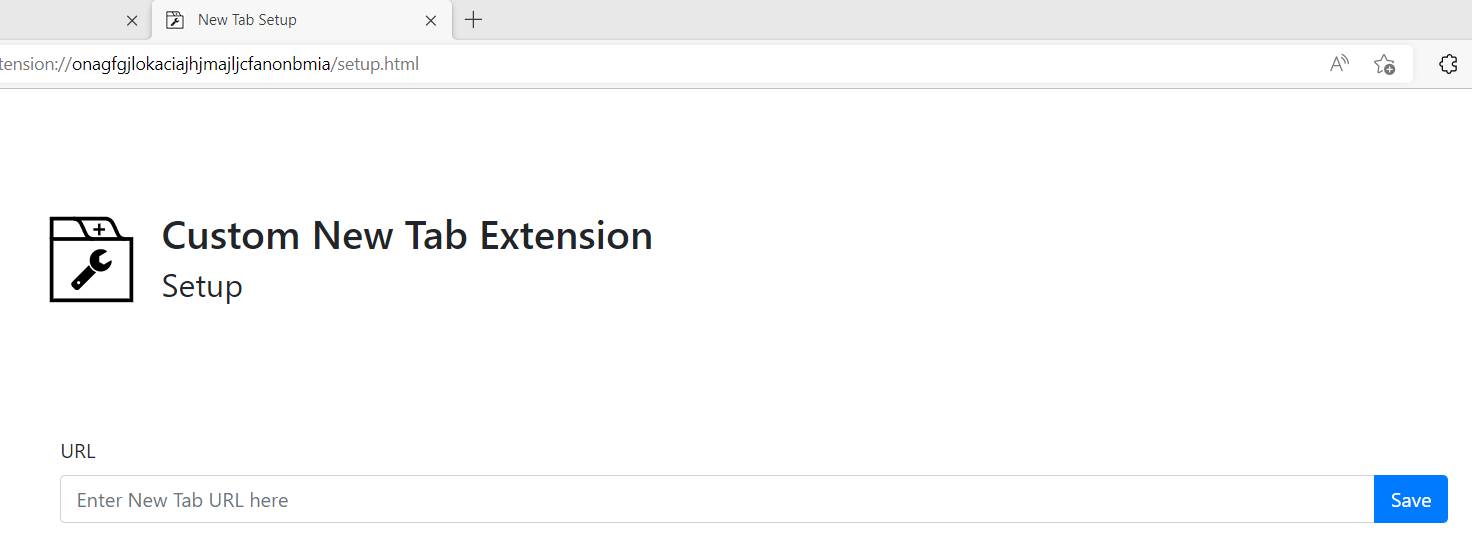
This is where you can type whatever URL you want as the landing page when you open a new tab. i.e. www.google.com, www.duckduckgo.com etc.
Click on "Save" then you can close the tab.
Next time you click for a new tab you will be taken to the URL you entered.
To see a demonstration of how to change the landing page for a new tab in Edge™ , please click on the button below.
To see a demonstration of how to remove the Edge™ extension , please click on the button below.
We have provided a 5 page PDF document detailing the process above. This PDF is available by clicking the button below.
When you open a new tab in the latest version of the Microsoft Edge Browser it will open a page that is full of, what Microsoft determine to be interesting content and plenty of adverts. This is both time consuming, as the content gets loaded, and intrusive because of the commercials.
So, what can you do about it?
Well, you could always tweak the settings and turn off quick links and stuff but if you want to always land on (say for example google.com) when you open a new Edge tab then you can achieve this by installing a browser add-in.
The first thing to do is locate a reputable add-in.
Custom New Tab - Microsoft Edge Addons ( available here at https://microsoftedge.microsoft.com/addons/detail/custom-new-tab/onagfgjlokaciajhjmajljcfanonbmia) is a good, solid choice and it is free.
When you follow the above URL you should see a tab with the following on it (click the image for the full image):
Click on the "Get" button and you should see a pop-up box that looks like this:
Click on the "Add extension" button. You will see another pop-up screen that is basically a warning screen, but you can just go ahead and close it. The pop-up looks like:
This is a default action to prevent potentially dangerous add-ins from being sneakily added to Edge and providing a potential security loophole in the browser.
Click on the three little dots on the top right of the browser screen to open up the settings menu:
In the drop down that is displayed, click on "Extensions". You should get another pop-up screen for managing extensions. It will look like this:
Click on the "Manage extensions" text and you will see a tab open which looks like:
Click on the slide "switch" (as indicated by the arrow above). Slide should change to blue. You can now close this tab.
Now click in the browser to open a new tab. You will see the following screen:
This is where you can type whatever URL you want as the landing page when you open a new tab. i.e. www.google.com, www.duckduckgo.com etc.
Click on "Save" then you can close the tab.
Next time you click for a new tab you will be taken to the URL you entered.
To see a demonstration of how to change the landing page for a new tab in Edge™ , please click on the button below.
To see a demonstration of how to remove the Edge™ extension , please click on the button below.
We have provided a 5 page PDF document detailing the process above. This PDF is available by clicking the button below.